

Printers. Just saying the word is enough to make some people sigh deeply and stare into the distance. Do you find yourself asking, “Why does my printer say it’s offline? Why does nothing happen when I click print? Why are my prints faded and streaky? How do I fix my paper jam?” One minute they’re behaving, the next they’re flashing mysterious lights, claiming they’re “offline”, or simply refusing to acknowledge that you click print at all. No one likes silly printer problems!
If that sounds familiar, you’re not alone. Printers are easily one of the most common tech troubles we see, and the good news is that many of the most annoying issues have surprisingly simple fixes. So before you threaten to do some not-so-nice things to your printer, let’s walk through the most common printer problems and what you can try at home first!
“My printer says it’s offline” (but it’s clearly turned on)

This is the number one printer complaint we hear, and it usually comes down to one thing: your printer and your computer are no longer talking to each other. This can happen after a power cut, a Wi-Fi change, or if the printer has been sitting unused for a while.
Start with the basics:
- Check that the printer is turned on and has a light or screen showing
- Look at your Wi-Fi router and make sure it’s turned on with the correct lights showing
- Turn the printer off, wait 10 seconds, then turn it back on
- Turn your computer or laptop off, wait 10 seconds, then turn it back on
Once everything is back on, give it a minute to reconnect and then try printing again. You’d be amazed at how often this alone fixes the problem. If it doesn’t, the printer may need to be reconnected to the Wi-Fi. If that still doesn’t work, it might be time to call in a tech to save your sanity!
USB Cable or Ethernet Cable?
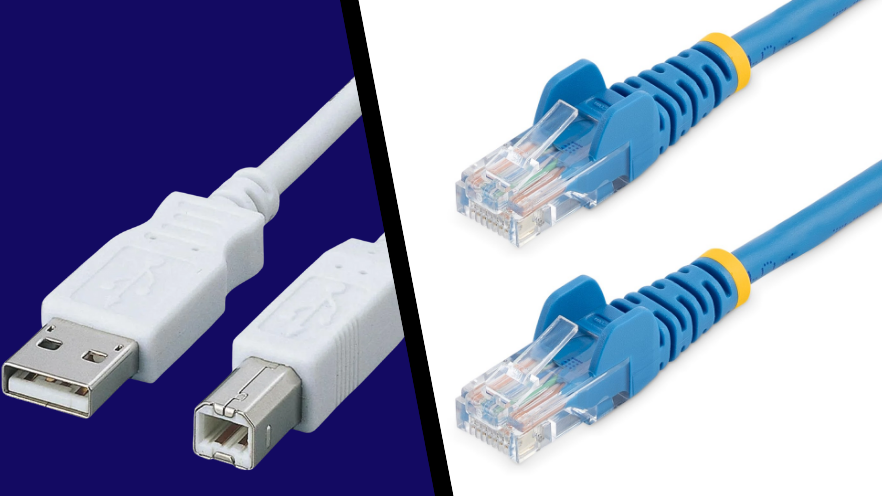
You can connect printers in a few different ways, and this is where things often get confusing. Some printers can have some pretty vague instructions.
A USB cable connects the printer directly to one computer. One end plugs into your computer (flat and rectangular), and the other end plugs into the printer (usually more square-shaped). This setup is common when the printer sits right next to the computer, and only one person uses it.
An Ethernet cable connects the printer to your modem or router, so multiple devices can print to it. Both ends look the same and clip in firmly, similar to a phone plug but wider.
A quick way to tell what you’re using:
- If the cable runs from the printer to the computer, it’s a USB Cable
- If the cable runs from the printer to the internet box on the wall or shelf, it’s an Ethernet cable
- If no cable is plugged in at all, the printer is likely using or trying to use Wi-Fi
If your printer suddenly goes offline, checking where the cable goes and making sure it’s pushed in properly is an excellent first step!
I click Print, and absolutely nothing happens
Few things are more confusing than a printer that fails silently. No error message, no warning, just nothing. Just stuck with one of the more confusing printer problems.
First, check the basics (power, paper, cables), then restart both the printer and the computer. If that doesn’t help, the printer may be paused or set to offline.
On Windows:
- Click Start
- Open Settings
- Go to Bluetooth & devices
- Select Printers & scanners
- Choose your printer
- Click Open print queue
- Click the Printer menu at the top
- Make sure “Use Printer Offline” is unchecked
- Make sure “Pause printing” is unchecked
On macOS:
- Open System Settings
- Click Printers & Scanners
- Select your printer
- Look at the button near the top right of the window
- If you see a play icon, click it to resume printing
- If jobs are stuck, open the printer queue and resume or cancel them
Faded, streaky, or missing colours
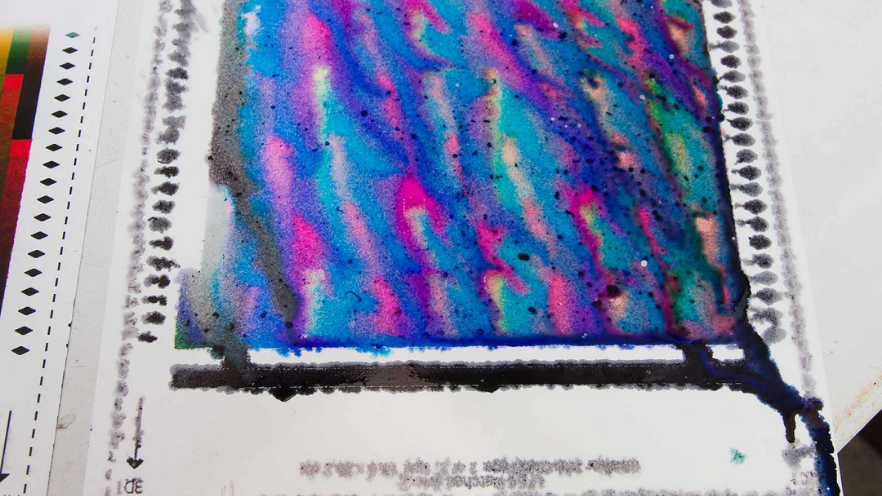
If your pages look washed out, patchy, or have lines running through them, the problem is usually ink or toner-related, but that doesn’t always mean you need to replace anything straight away! This is one of the most common printer problems we see!
Try this first:
- Check the printer for any ink or toner warnings
- Remove the ink cartridges gently and place them back in firmly
- Look for a clean or maintenance option on the printer screen or computer
- Print a test page after cleaning
Power Flush (also called Deep Clean)
If a normal clean doesn’t help, many printers have a more thorough option called a Power Flush or Deep Clean. This forces ink through the print head at higher pressure to clear blockages, dried ink, or air bubbles.
This is especially useful if the printer hasn’t been used for a while. It does use more ink, so it’s best saved for when prints are clearly missing colours or heavily streaked.
The steps vary slightly by brand, but usually look like this:
- Open Bluetooth & Scanners on your computer
- Select your printer
- Click Printing Preferences
- Open Maintenance or Tools
- Choose Cleaning or Print Head Cleaning
- Select Deep Clean, Power Clean, or Power Flush
- Click Start or OK
Let the process finish completely! It can take several minutes and may sound louder than usual, which is completely normal! When it’s done, print a test page. If there’s no improvement after one or two attempts, it’s probably time to get professional help!
How to clear a paper jam?
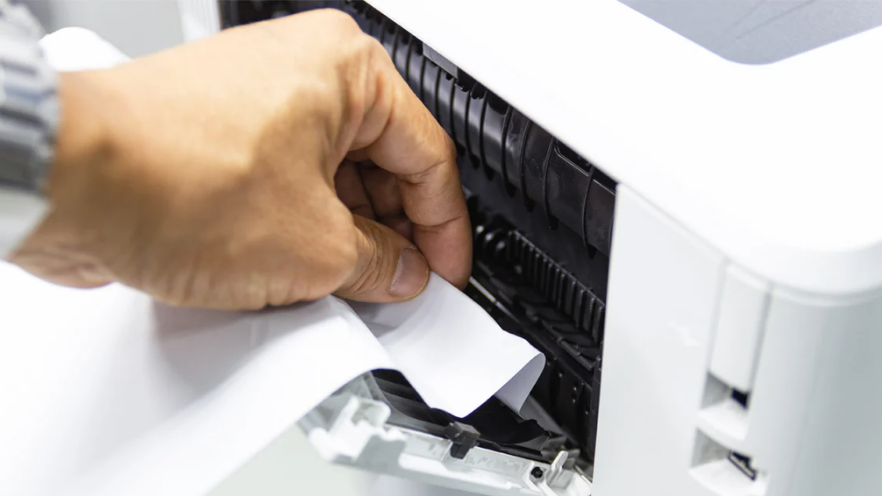
Paper jams are frustrating, especially when you can’t actually see any paper stuck inside. Even a tiny scrap can trigger an error. This is definitely one of the more annoying printer problems to come across.
Here’s the safest way to deal with it:
- Turn the printer off
- Open all lids and trays carefully
- Look closely for small torn pieces of paper
- Remove paper gently and never pull hard
- Reload paper neatly and not too tightly
If nothing is visible:
- Check for a rear door or panel and open it carefully
- Remove the paper tray completely
- Inspect the empty slot using a good light or torch
- Look around the rubber rollers and gently turn them
- Close all trays and covers firmly before turning the printer back on.
If the jam message won’t clear, stop there. Forcing things can damage sensors or rollers, and at that point, a technician can save you from making a small problem much bigger!
Printers may never be anyone’s favourite piece of technology, but a calm restart, a cable check, or a quick clean can solve a huge number of problems.
And when it doesn’t, that’s exactly what technicians are for.
If nothing else, remember the golden rule of printer troubleshooting: when in doubt, restart everything first. It works more often than you’d expect!
