

We’ve all been there. Staring at the glowing rectangular screen in awe at how slow it’s become.
A slow computer is one of the most common tech complaints we hear at Geeks on Wheels, and the good news is that most of the time there’s a perfectly fixable reason behind it. Before you start shopping for a new machine, work through these common culprits. A few simple fixes can make all the difference!
Too Many Programs Running at Once
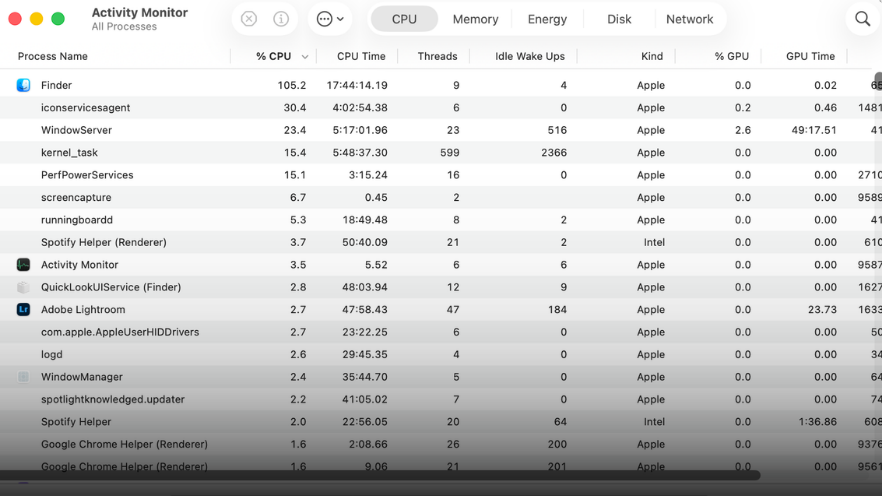
One of the most common answers as to why your computer is running slow is simply that it’s trying to do too many things at once. A bit like us, when we get overwhelmed, we can tend to shut down a bit. Computers are the same. Every open program is using a share of your computer’s RAM (that’s its short-term memory) and processor power. The more you have running, the less there is to go around, and things can start getting slower and slowerrrrrrr.
Fun fact, sneakily enough, many programs open themselves automatically when your computer starts up and quietly run in the background without you even knowing. Over time, this list of startup programs grows, and your computer ends up doing a lot of work before you’ve even opened anything! Here’s how to check and clean that mess up:
- Windows: Press Ctrl + Shift + Esc to open Task Manager > click the Startup tab > and disable anything you don’t need loading at startup
- Mac: Go to System Settings > click General > then Login Items > remove anything unnecessary from the list
While you’re at it, close any browser tabs and applications you’re not actively using. Each open tab in your browser uses memory, and having thirty of them open at once is a common cause of slowdowns. In fact, even just shutting the computer down properly and then booting it back up can help a bunch!
Your Storage Drive Is Almost Full
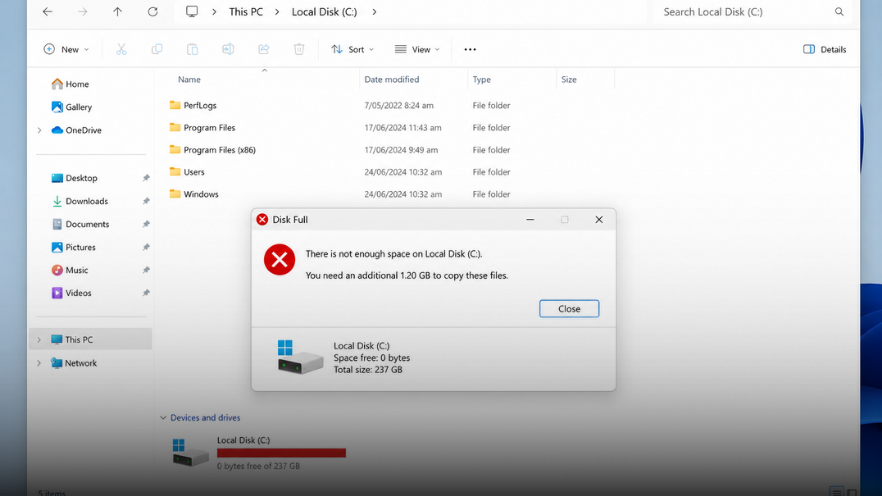
If you’re wondering why your computer is running slow, a nearly full storage drive is one of the first things to check. Your computer needs a certain amount of free space on its drive to operate properly. When it gets too full, things like saving files, installing updates, and general performance all start to suffer. As a general rule, try to keep at least 15 to 20 percent of your drive free at all times.
Here’s how to check how much space you have left:
- Windows: Open File Explorer > click This PC, and you’ll see a visual bar showing how full your drive is
- Mac: Click the Apple menu > go to System Settings > General > then Storage to see a breakdown of what’s taking up space
If you’re running low, start by emptying your Recycle Bin or Trash, deleting files you no longer need, and clearing out your Downloads folder, which tends to collect a fair amount of forgotten junk over time. Moving photos and videos to an external drive or cloud storage like OneDrive or Dropbox is a great way to free up space without losing anything.
Your Computer Needs an Update
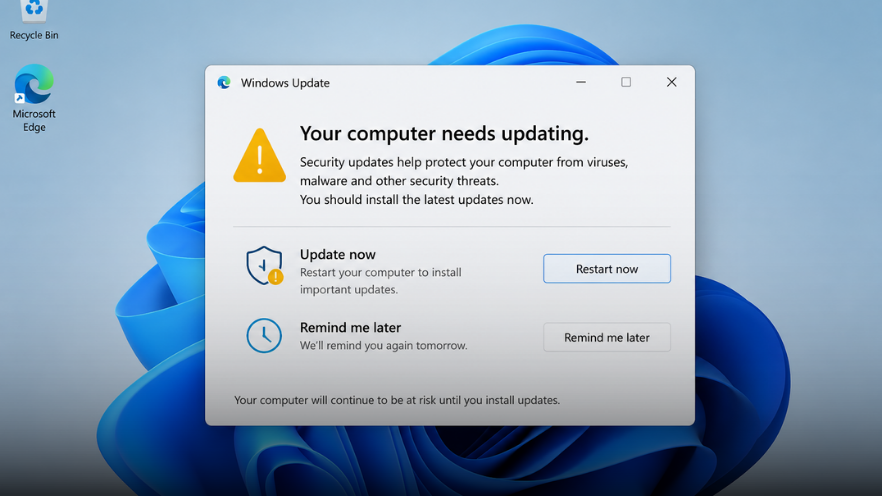
Skipped updates is another reason your computer is running slow. Operating system updates often include performance improvements and bug fixes that make your computer run more efficiently. Outdated drivers, especially for your graphics card and storage drive, can also cause slowdowns that are easy to fix once you know they’re there.
Check for updates on your system:
- Windows: Go to Settings > Windows Update > click Check for Updates
- Mac: Go to System Settings > General > Software Update
It’s also worth making sure your browser is up to date, since an outdated browser can make the internet feel painfully slow even if your computer itself is fine. Most browsers update automatically, but it’s worth double-checking now and then!
Your Hard Drive Might Be Struggling
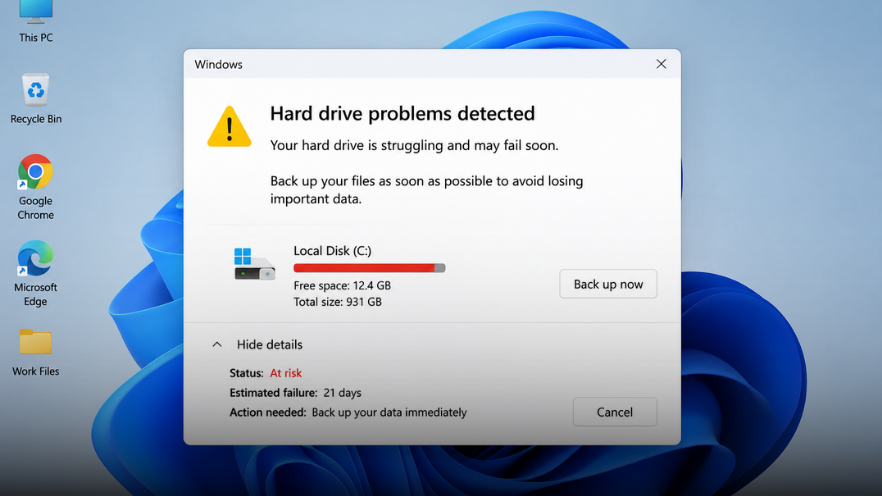
If you have an older computer with a traditional spinning hard drive (HDD) rather than a modern solid-state drive (SSD), this could be a big part of why your computer is running slow. HDDs are significantly slower than SSDs, and they also degrade. A failing or worn hard drive will cause noticeable slowdowns before it eventually gives up entirely.
You can check to see if your drive is corrupted by following these instructions:
- Windows: Search for ‘Windows Security’ in the Start menu > open it > go to Device Security > then Core Isolation > look for Drive Health under Device Performance and Health
- Mac: Open Disk Utility (found in Applications, then Utilities or Launchpad) > select your drive from the sidebar > click First Aid to check for errors
If your drive is showing errors or you’re hearing clicking or grinding noises from your computer, that’s a sign to act quickly. Back up your files immediately and give us a call! We can do a health check on your hard drive too, something that you can’t check through the computer itself! Upgrading from an HDD to an SSD is one of the single best things you can do for an older computer and can make it feel like a completely new machine!
It Might Be Malware

A sudden and unexplained slowdown is one of the clearest signs that your computer is running slow, and malware is more often the culprit than people realise. Viruses, spyware and other malicious software can run quietly in the background, using your computer’s resources without your knowledge. Alongside the slowdown, other signs include pop-ups appearing out of nowhere, your browser behaving strangely, or programs opening that you didn’t launch.
Running a malware scan is always a good idea if you suspect something is going on:
- Malwarebytes offers a free virus scanner for both Windows and Mac that is worth running if you’re concerned.
If a scan finds something and you’re not sure what to do next, don’t guess. Some malware is tricky to remove properly and guessing can make things worse. Give us a call, and we’ll make sure your computer is fully cleaned up and protected going forward!
Most slow computer problems have a straightforward fix once you know what you’re looking for. Working through the steps above will sort out the majority of cases, and with a bit of regular maintenance, your computer should stay running smoothly for a long time.
If you’ve tried everything and it’s still crawling along, or if you’d just rather have a professional take care of it for you, that’s exactly what we’re here for! Give us a call on 0800 424 335 or book a Geek online and we’ll get your computer running the way it should!
