

Have you been caught scratching your head, asking, why is my Wi-Fi not working?
Few things in life are more frustrating than sitting down to browse, stream, or video call someone and finding your Wi-Fi has decided to take the day off!
Before you start pulling your hair out, the good news is that many Wi-Fi problems can be sorted at home with a few simple checks. We’ve put together this step-by-step guide to walk you through exactly what to do, starting with the basics and working up to the trickier stuff!
Step 1: Turn It Off and On Again!
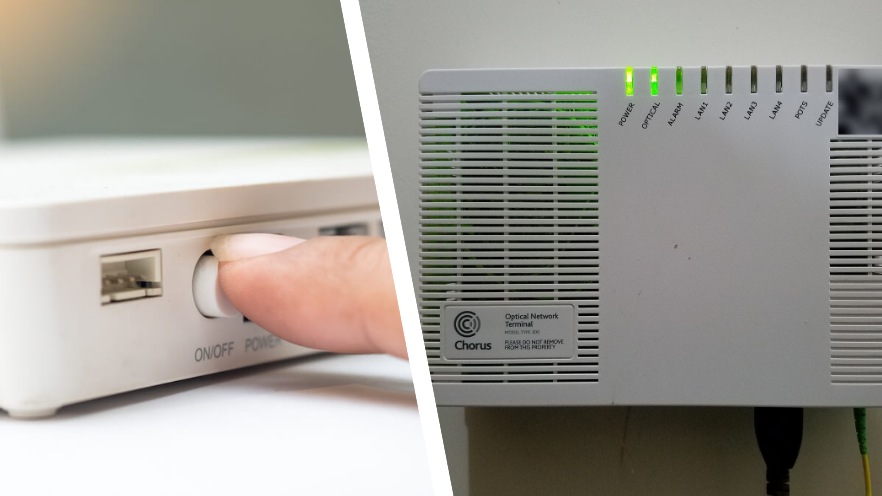
We know, we know. But when your Wi-Fi is not working, restarting your router and ONT (that’s your fibre box attached to the wall) is genuinely the single most effective first step you can take. Restarting clears the device’s memory, drops any stuck connections, and gives everything a fresh start. A surprisingly large number of Wi-Fi problems disappear completely after a proper restart. Here’s how to do it properly:
- Switch your router and ONT off at the wall
- Wait a full 60 seconds
- Plug them back in and give them 2 to 3 minutes to reconnect fully
- Restart the device you’re trying to connect with, as sometimes the problem is on the device’s end
While you’re waiting for the router to reconnect, it’s worth restarting your laptop or phone at the same time. It only takes a minute and rules out a whole category of problems in one go!
Step 2: Check Your Wi-Fi is Actually Turned On

This one sounds obvious, but it happens more often than you’d think! If your Wi-Fi is not working on a specific device, check whether Wi-Fi connectivity is actually switched on! It’s very easy to accidentally turn it off, especially on phones and tablets. Here’s where to look on each device:
- iPhone: Swipe down from the top right corner and check that the Wi-Fi icon is blue, not grey
- Android: Swipe down from the top of your screen and check the Wi-Fi icon in your quick settings
- Windows laptop: Click the Wi-Fi icon in the bottom right corner of your taskbar and make sure Wi-Fi is toggled on
- Mac: Click the Wi-Fi icon in the top right menu bar and check it’s switched on
While you’re there, check which network you’re actually connected to. Sometimes devices latch onto a neighbour’s network or an old network name that no longer exists. Make sure you’re connected to your own home Wi-Fi. If you’re unsure of your network name, it’s usually printed on a sticker on the side or bottom of your router!
Step 3: Read Your Router Lights
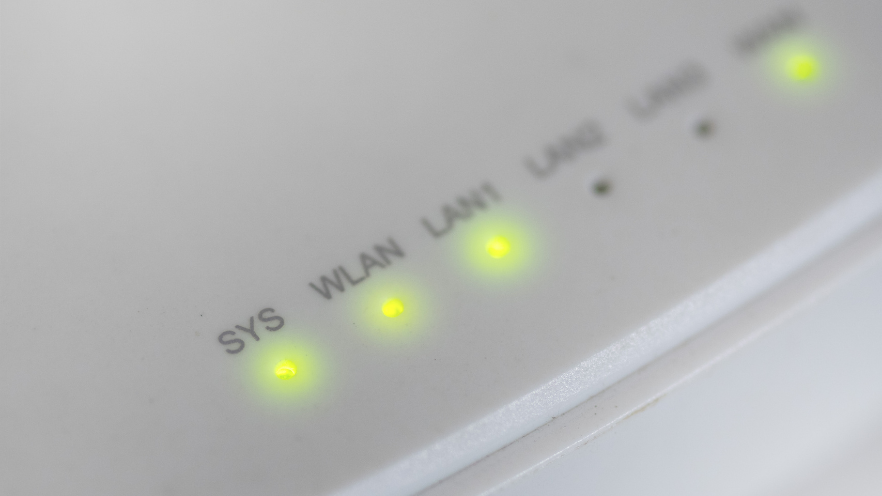
If restarting your router didn’t fix your Wi-Fi not working issue, and W-Fi is confirmed on, take a closer look at your router lights. Those little coloured lights are not just for decoration! Here’s a general guide to what they mean:
- Solid white or green: All good, connected and working
- Blinking white or green: Normal activity, data is moving through
- Orange or amber: Something isn’t quite right, often a connection issue
- Red: A problem has been detected, which often means no internet signal is coming in
- No lights at all: The router isn’t getting power. Check the plug and power cable
The most important light to check is the one labelled ‘Internet’ or ‘WAN’. If that one is red or off, the problem is likely between your router and your internet provider rather than anything you’ve done wrong.
You’ll want to check that all of the cables are firmly in the correct slots as well. A loose Ethernet cable can cause Wi-Fi issues and red or orange lights on your router. Take a photo of your lights before calling your provider, as they’ll almost always ask you to describe them. If your Wi-Fi is not working and the lights look fine, use your mobile data to search for an outage in your area.
All of the major network managers, such as Chorus or Enable, have outage maps on their websites. This can take a while to update, so just because an outage isn’t showing, it doesn’t rule out a network issue.
Disclaimer: Please remember each router is different, so you may want to Google your router’s specific light meaning for more info. You can usually find your router model number on the router itself!
Step 4: Try Moving Closer to the Router

Wi-Fi signal weakens the further you get from the router, and certain materials like concrete walls, thick floors, and large appliances can block it significantly. If your Wi-Fi is slow or keeps dropping out, try moving closer to the router and see if things improve. If they do, you have a coverage issue rather than a connection issue. A few things can help:
- Move your router to a more central location in your home, away from walls and large objects
- Keep it out in the open rather than stuff it in a cupboard or tucked behind the TV
- Consider a mesh network system to fully optimise your Wi-Fi
It’s also worth checking whether other devices in the home are connected and working fine. If everyone else’s devices are working but yours isn’t, the issue is almost certainly with your specific device rather than the router.
Step 5: Factory Reset Your Router (Last Resort)
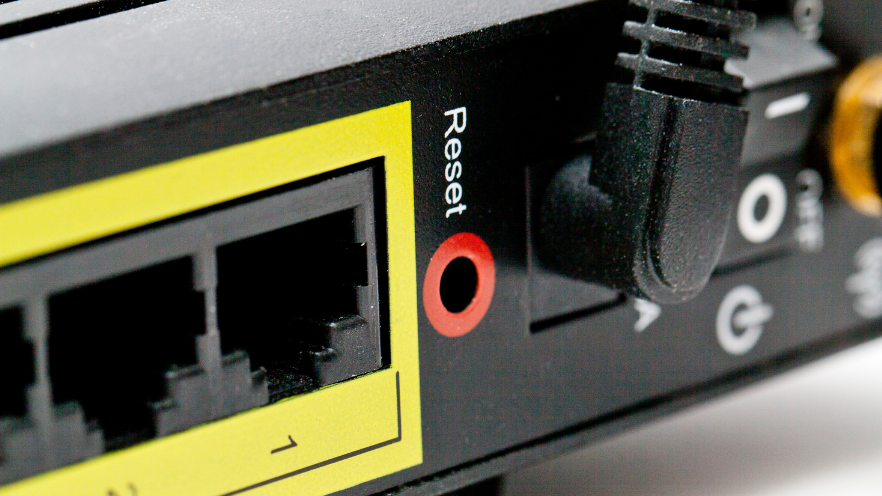
If you’ve worked through all of the above and your Wi-Fi not working problem is still persisting, a factory reset of your router is the next step. This restores the router to its original settings and can clear any configuration issues that have crept in over time. Just be aware that it will wipe your custom settings, including your W-Fi name and password, so you’ll need to set those up again using the sticker on your router. Here’s how:
- Find the small reset button on the back or bottom of your router
- Use a paperclip or pin to hold it down for 10 to 30 seconds
- Wait for the lights to reset
- Set up your Wi-Fi again using the default details on the router sticker
If you’re not comfortable doing this yourself, no worries at all! Wi-Fi issues are one of the most common fixes for our technicians. They even ranked as our second most common tech trouble last year!
Wi-Fi issues can be incredibly frustrating, especially when you’ve tried everything and nothing seems to work. The steps above will sort out the vast majority of problems you run into at home, but every now and then, something more stubborn comes along that needs a bit of expert attention.
That’s where we come in. Give us a call or book a Geek online, and we’ll have you back up and running in no time!
